Check-in desk
You've probably used the self check-in system at one point or another, whether it's to check yourself in (hi kids), or to check your family in. If you haven't, you should read this page first. Depending on how long you've been here, maybe you remember being able to search yourself by name. We'll explain the motivation behind changing away from that in a bit, but nowadays we use the phone number system (which you're an expert with now, either through experience or because you read that other page, right?).
The phone number system is great at what it does - anyone in the family can check in their family using their phone number. But what they can't do is edit their profile, update their contact info, create new users, you get the idea. That's where you come in. In this guide, we'll walk through a couple scenarios and how to resolve them. By the end of it, you should be an expert in managing people using the check-in system.
This is the part with the scenarios
Scenario 1: A new challenger family approaches
A family is switching churches and has come to Dwelling Place to check it out. They walk up to the check-in desk, and look confused. "Put our phone number in? Do they already have our names? Did they buy our data on the dark web?" they wonder. While that would be a neat trick, unfortunately that was out of the budget. As a substitute for purchasing random people's data on the internet, we have you, dear check-in desk volunteer. Here's what you need to do:
- Write the parents name into the check-ins software, and press Add Person. Select New Household.
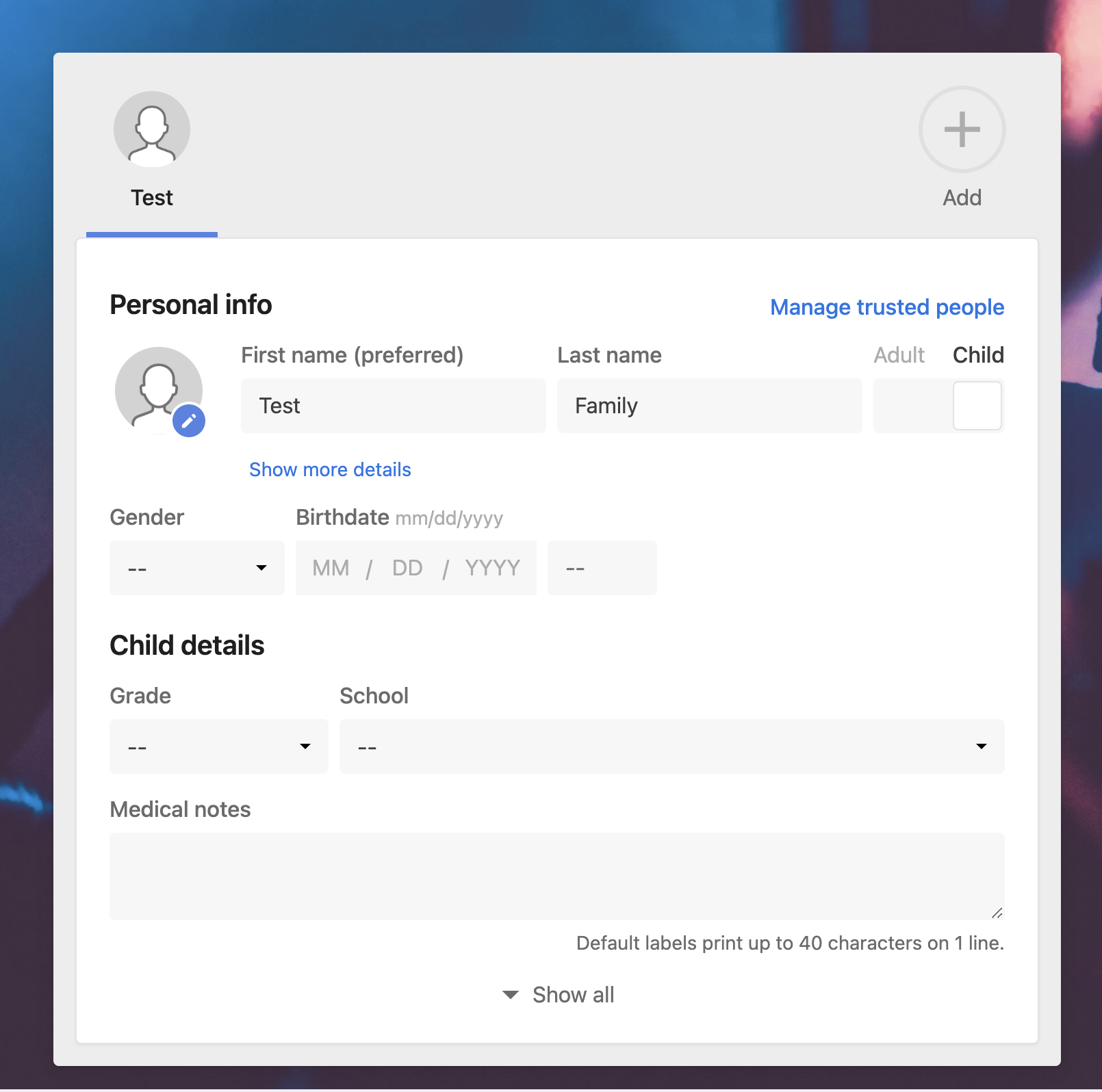
You'll be greeted with the following page:
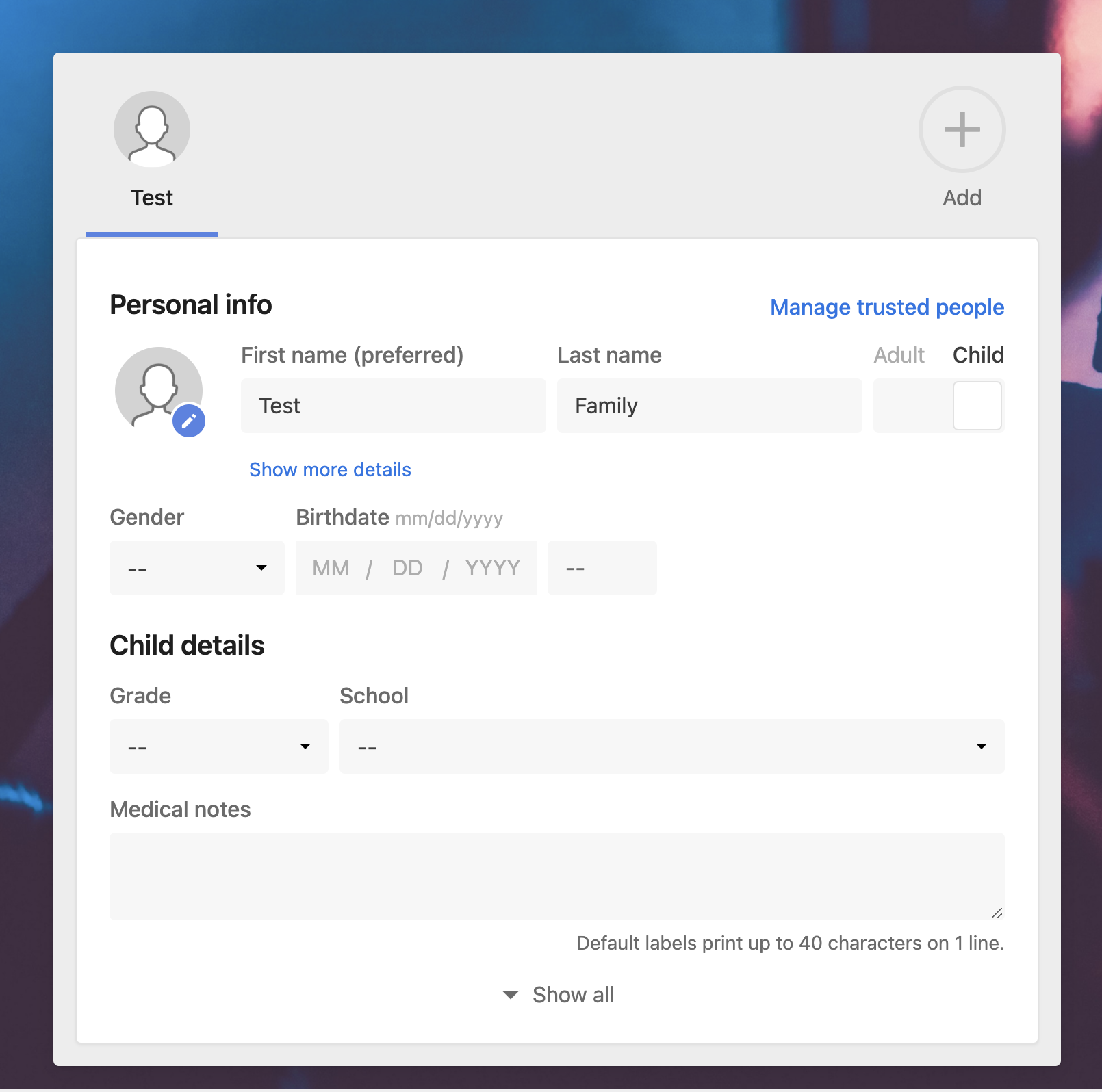
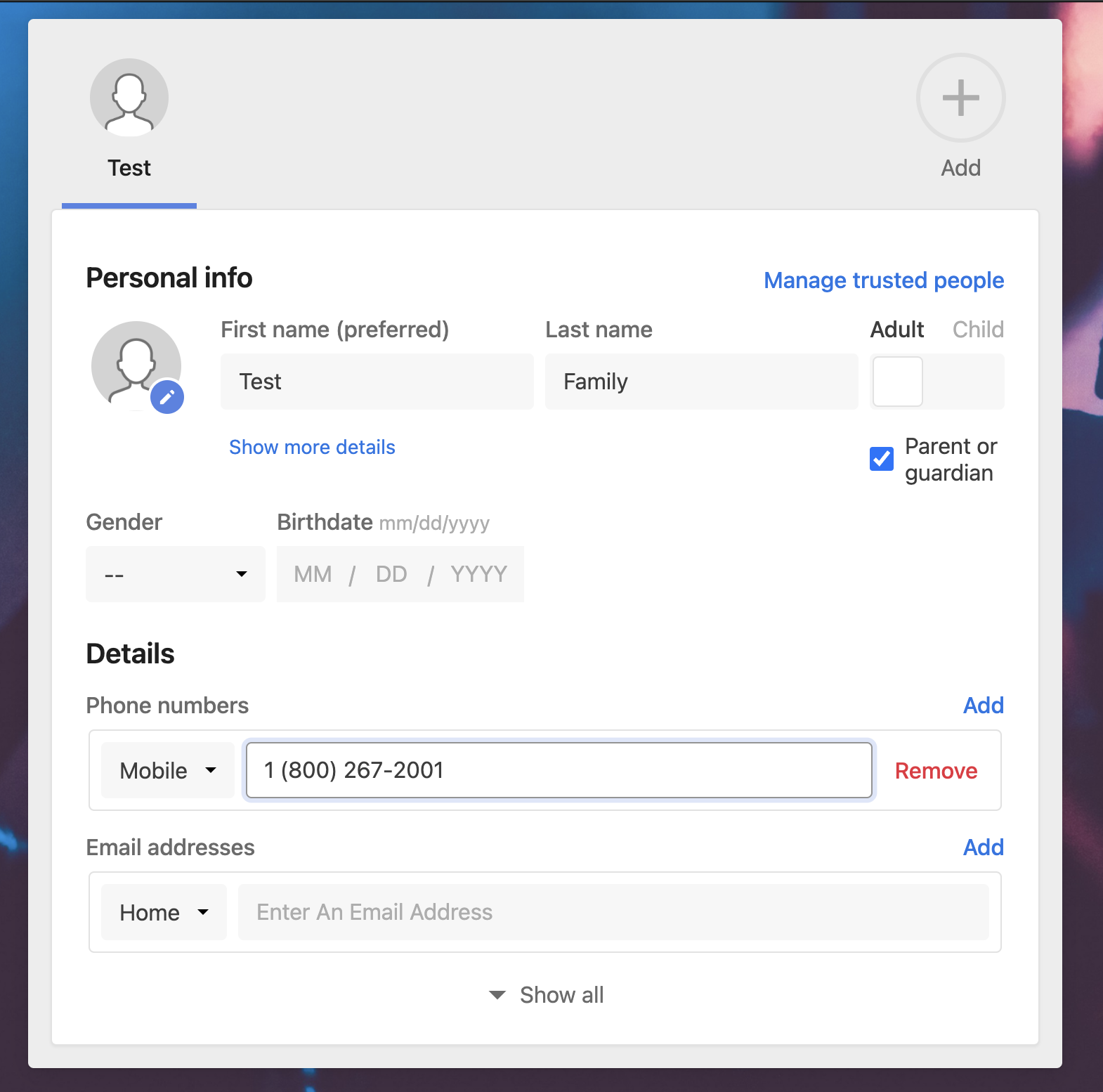
You may notice that by default, the new person is a child. Press the toggle to switch them to an adult. Next, select the Parent/Guardian checkbox. - Acquire the parent's phone number. We need this on file for the nefarious act of contacting them
about their car's extended warrantyif their child has an emergency while in kid's church.
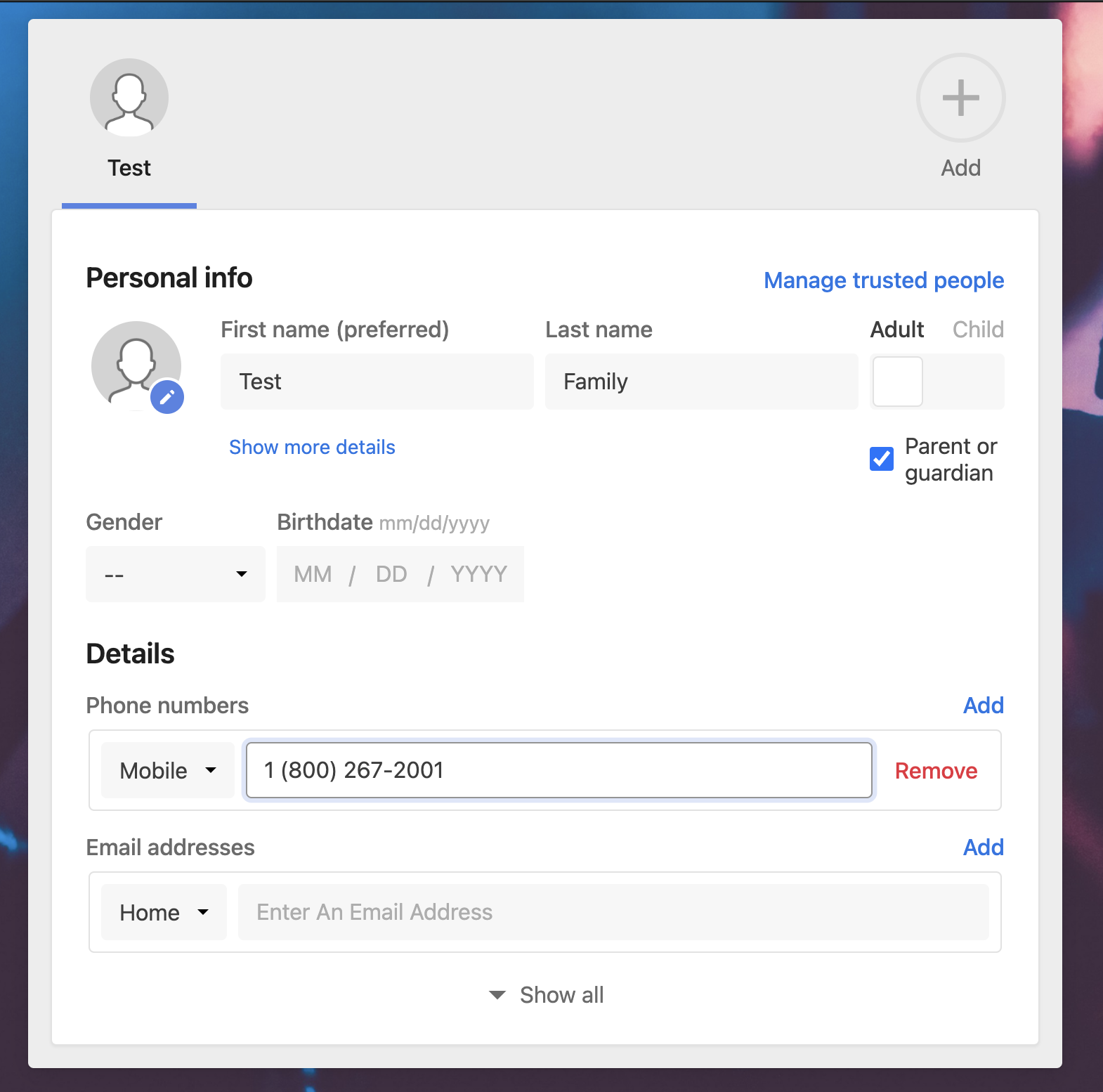
Ensure they have not given you the Alarmforce phone number, unlike Mr. Test here - Next, press Add in the top right to add a new family member. If there are two parents present, you may wish to add the second parent so that either parent can check the children in in the future. Otherwise, proceed to the next step.
- Now, add a new family member, and enter the child's name. Ask the child what grade they are in, and then ask for their birthday. If you have the year -> age -> grade calculation memorized, maybe you only need to ask for the year. For those of us that are not supercomputers, ask for both. Both fields should be filled in, and it is doubly important that the grade field is filled in.
The last step is to ask about any allergies or medical concerns.
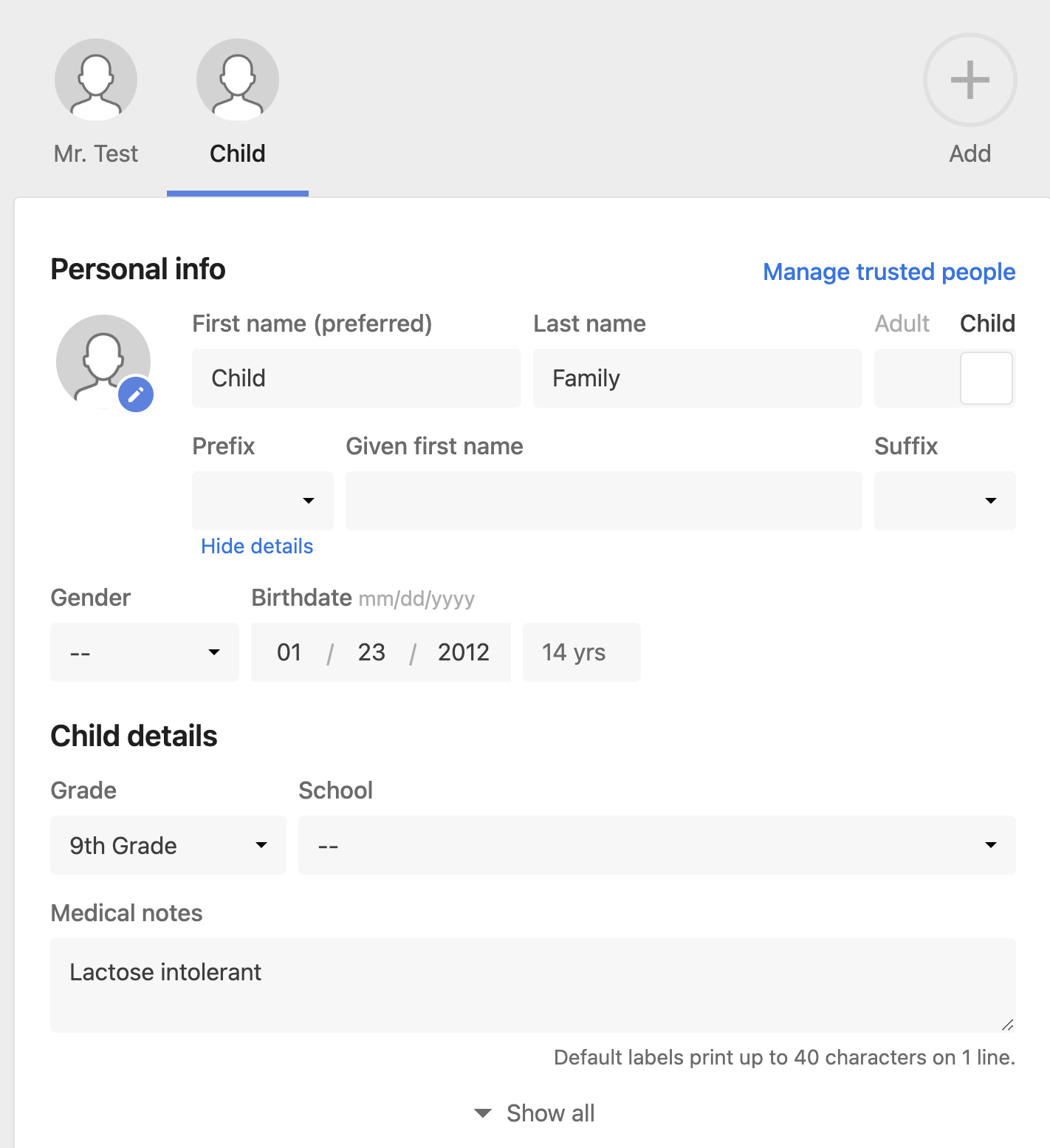 A moment of silence for the parents picking their child up, unaware he was fed ice cream today.
 - Repeat step 4 for each child.
- Now that the family is in the system, press Save Household in the top right corner.
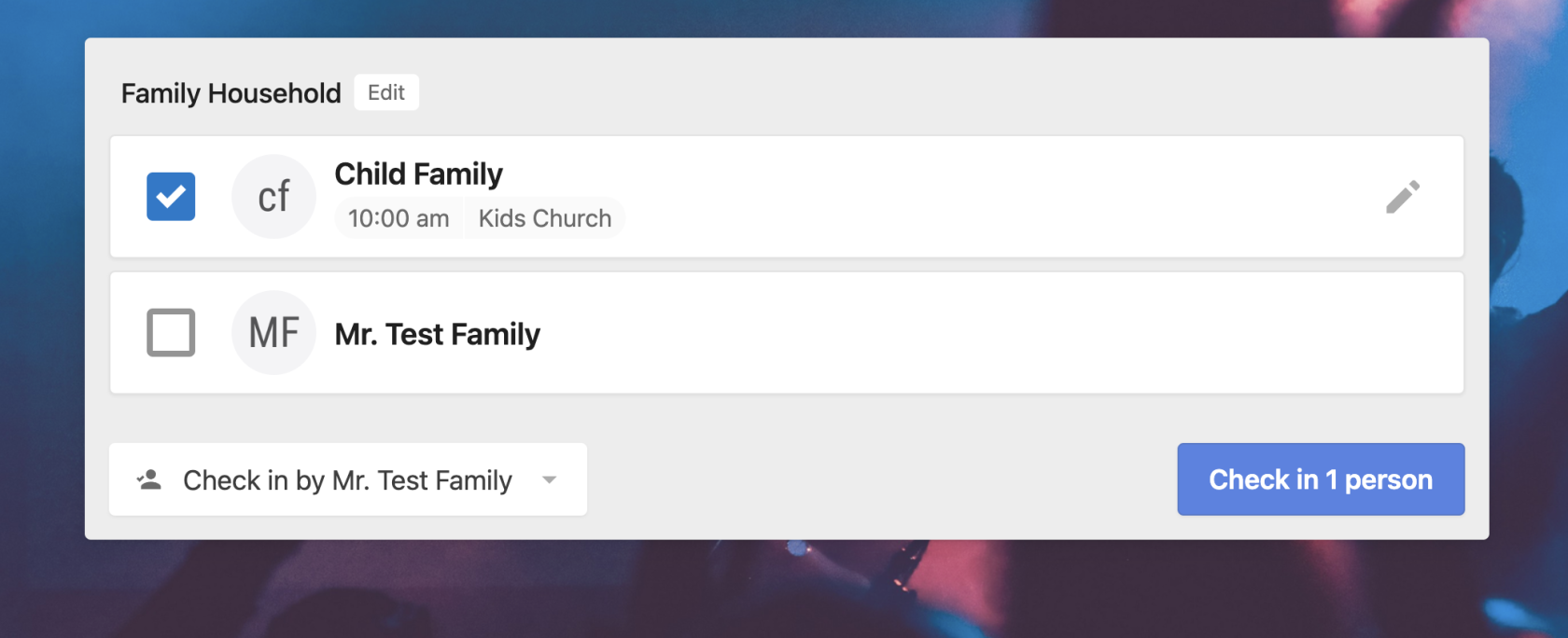
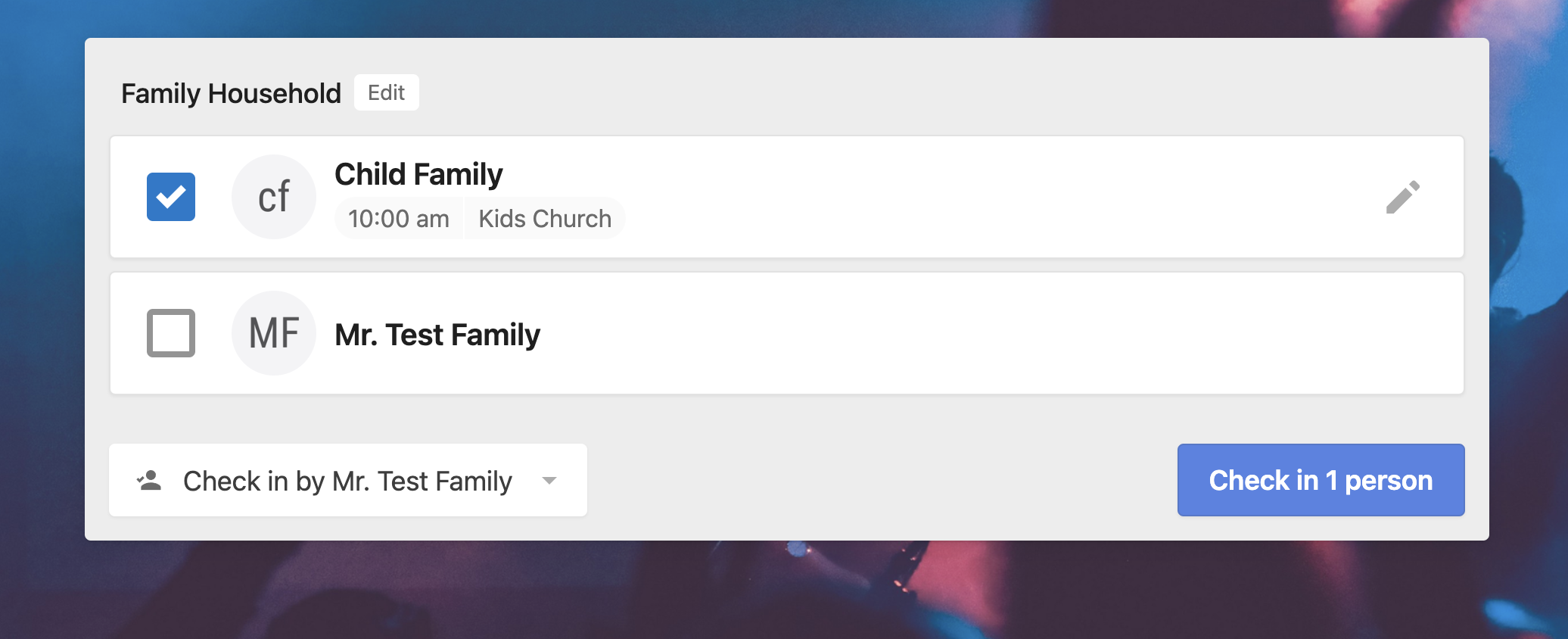
- Now check the children in.