
So you want to use ProPresenter...
ProPresenter is a complex piece of software with many moving parts. This introduction will focus on the basics, with more advanced elements located in other pages of this manual.
If you're new to this role, you'll also want to read So you want to use PVP... .
1. The Basics
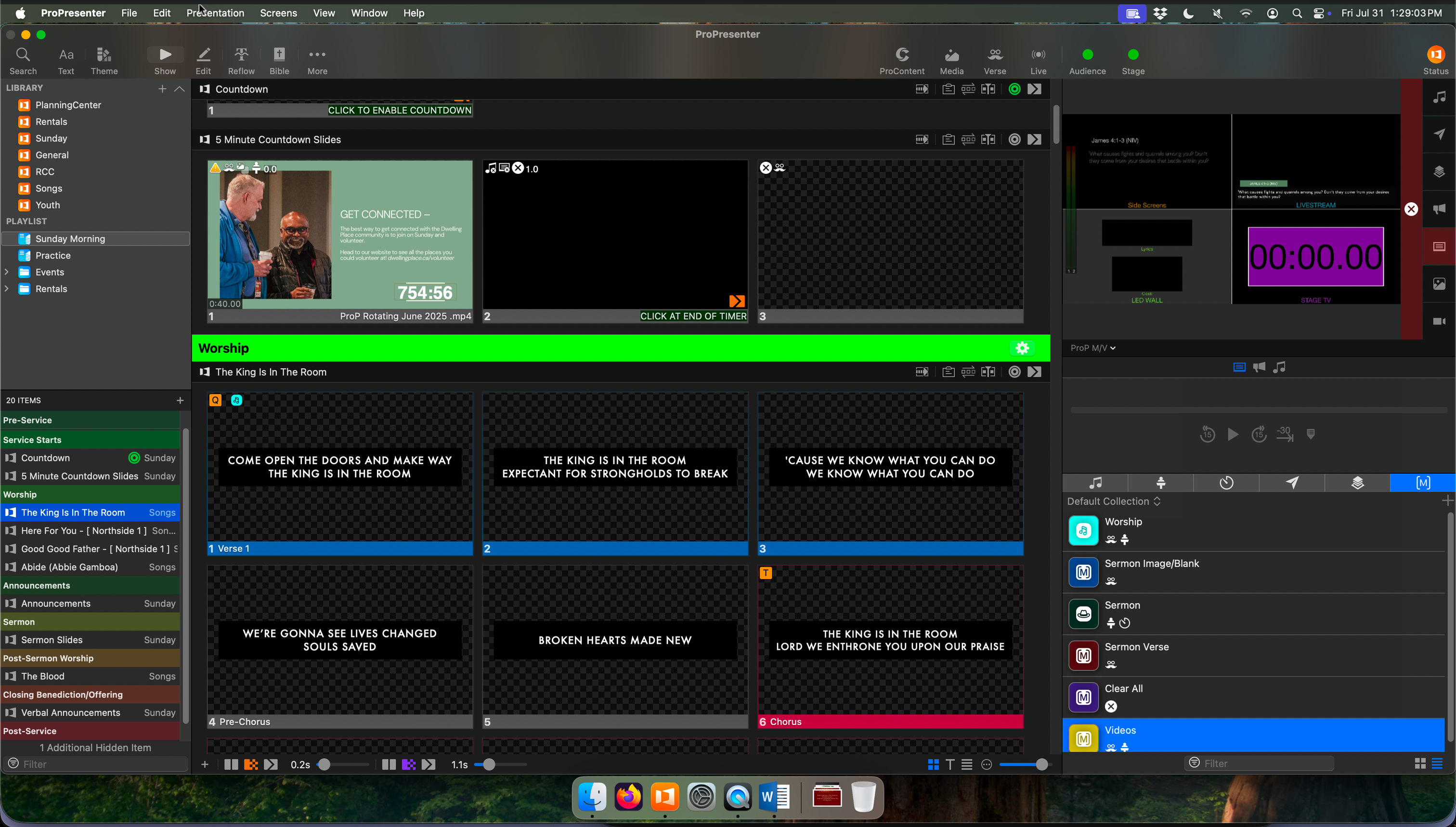
ProPresenter is powerpoint, on steroids. Powerpoint is great for a slide show on one screen, but as a church, we have many screens of different sizes that need to be shown different layouts. For example, the lyrics on the screens in the sanctuary are the same words shown on the livestream, but their font, position, and size is entirely different. At the back of the sanctuary, we show the band what the lyrics on the next slide are. Propresenter allows us to output all these different formats simultaneously, at the click of a slide. We can also change the "look" of each screen as needed, without interrupting the other screens.
To operate ProPresenter, you only need to know one simple thing. If someone on stage says words that are also on a slide (whether it be lyrics, a verse, or anything else), click that slide. That's it.
Okay that might be a bit of a lie, there's plenty of fancy stuff beyond that. But that's 80% of the job. You shouldn't need to do any configuration or setup of ProPresenter, that should be done during the week for you.
2. Screens & Outputs
As previously mentioned, ProPresenter has a lot of outputs. You'll need to monitor those outputs to ensure that you're using the correct theme (more on that later), and the output hasn't stopped for some reason. You can monitor the outputs using the view in the top right corner. By default, this should show 4 screens (known as a multi-view), but can be changed to show individual screens using the dropdown underneath. On the flip side, if it shows a single screen, you can change it back to the multiview in that same dropdown.
If the multiview shows an output, but nothing is seen on the device that should receive the signal, there's likely a problem with the connection between the devices. Most of the outputs on propresenter happen via physical cables, but the sanctuary screens are connected to the ProVideoPlayer (PVP) computer over the network. If you're having trouble getting a signal into PVP, please refer to the PVP page Reconnecting PVP to ProPresenter, as the problem is typically on the PVP side. For issues with other outputs, talk to the technical director.
3. Playlists
Each Sunday, we go through a playlist of individual events. These loosely correlate to the events in PlanningCenter/printed service orders. Typically, this playlist is set up during the week for you, however you may find you need to make slight changes to the songs during the band rehearsal. To do so, you can press the Arrangements button (3 boxes with lines on top and underneath), and drag the sections of the song around into a new order. Before doing so, check that you are *not* on the Master arrangement. There is a dropdown box on the left side of the event header, it should say anything but Master. If it does, change it to another option (usually there's an option somewhat like "Northside Standard" or "DP"). If no other options are available, create a new one by pressing Add Arrangement.
You can also reorder items in the playlist by dragging on the left of the screen where the playlist items are listed. Ensure you have the correct Sunday service highlighted beforehand.
4. Themes & Looks
As mentioned in the beginning, propresenter's biggest strength is it's ability to send different "looks" to different screens. These looks are called Themes, and we make heavy use of them for different sections of the service.
If you've been clicking around a bit, you may have noticed a Theme button when you right click a slide. Do not use that.
To ensure themes get applied to individual outputs and not every output simultaneously, we use something called Looks. You can view and change looks in the Looks tab (the moustache man in the top right). Looks allow us to change what layers get sent to which screens, but that's a whole other complicated subject we don't need to get into. The big interest for us is applying a Theme to each output. This allows us to have a look for each section of our service, such as a Worship Look, and an Announcement Look.
It is paramount that you have the correct Look for each section, which is where Macros come in.
5. Macros
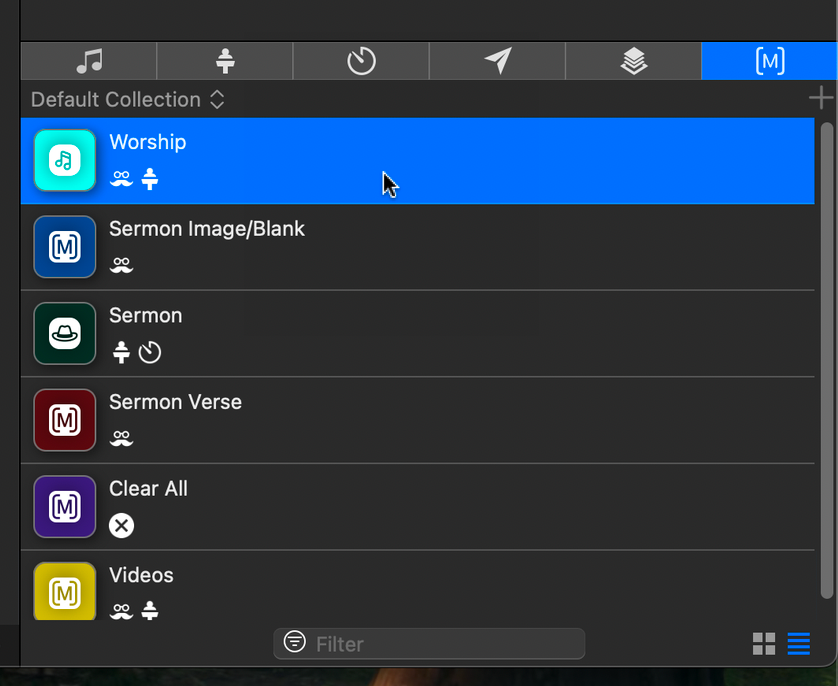
On the right side of the screen, there's a view that looks something like [M]. Pressing this will bring up all the macros at your disposal. Each of these macros does one or more things, typically changing the active Look, while potentially doing other things as well (such as starting the sermon clock when the sermon macro is triggered, or changing the Stage Layout, which is basically Looks for the screens facing the stage).
To trigger a macro, you can either click it in the list on the right to trigger it immediately, or drag it onto a slide to trigger it when the slide is pressed.
Important: 9 times out of 10, if the slides coming out of ProPresenter aren't working properly (eg not showing up on the screens, or are formatted incorrectly), it's because a macro was missed.
YOUR FIRST TROUBLESHOOTING STEP should always be to manually trigger the macro that corresponds to the look you need (Eg if lyrics are formatted as verses, press the Worship macro).
No comments to display
No comments to display