
PVP: Cues & Playlists
The PVP interface can look a bit daunting at first. If you've not seen it before, or this is your first time, here it is:
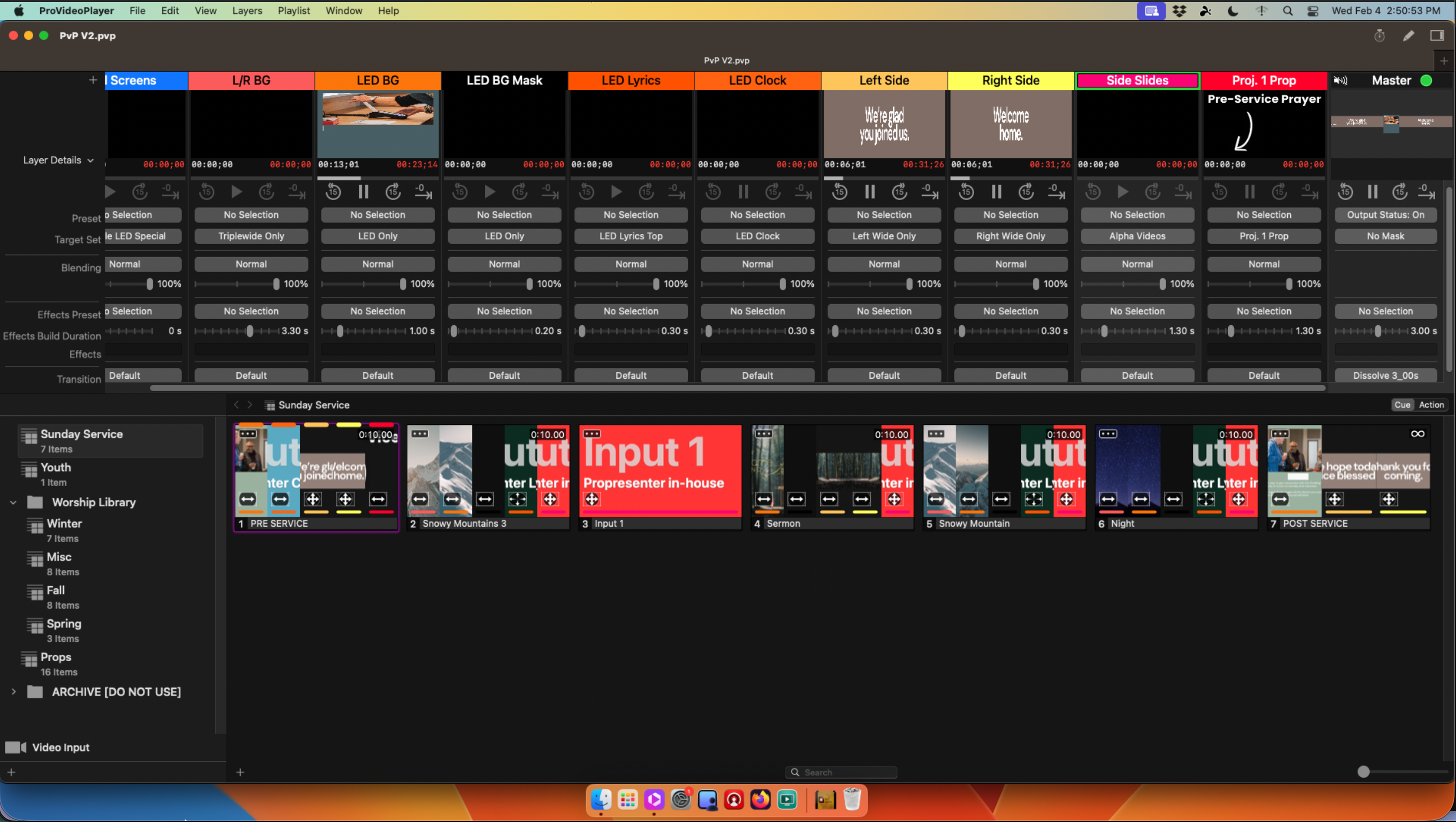
It looks like there's a lot going on, right? But as we break it down into smaller pieces, it becomes much less overwhelming. Let's start with cues and playlists.
Cues & Playlists
Cues are listed on the bottom half of the screen. They allow us to pre-program events that will affect every screen at the same time, instead of manually changing each screen one by one. We won't go over building cues here (that's part of the PVP deep dive).
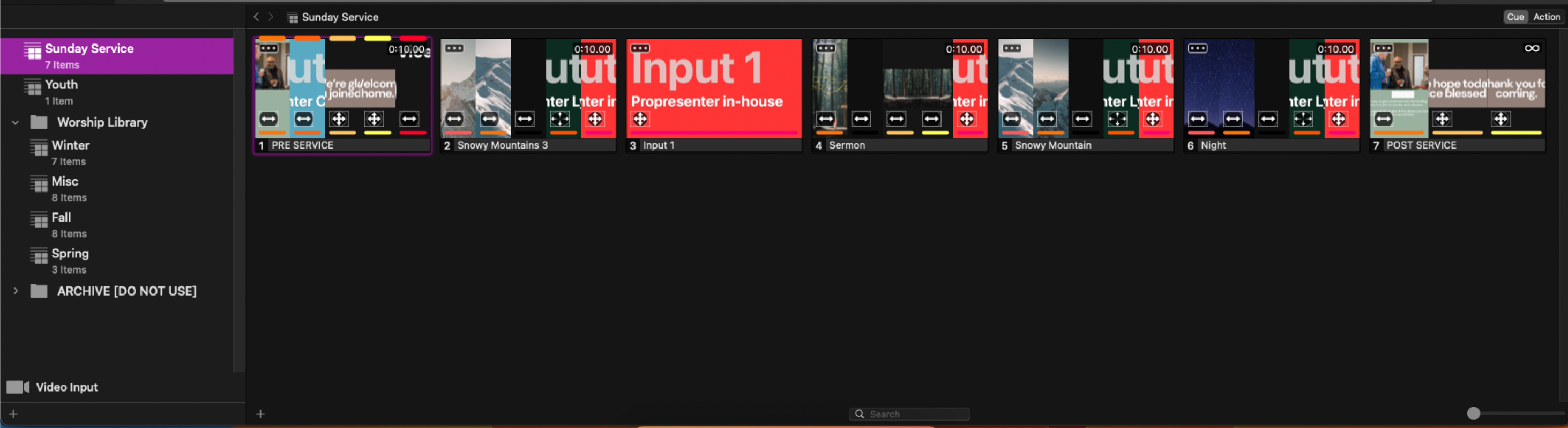
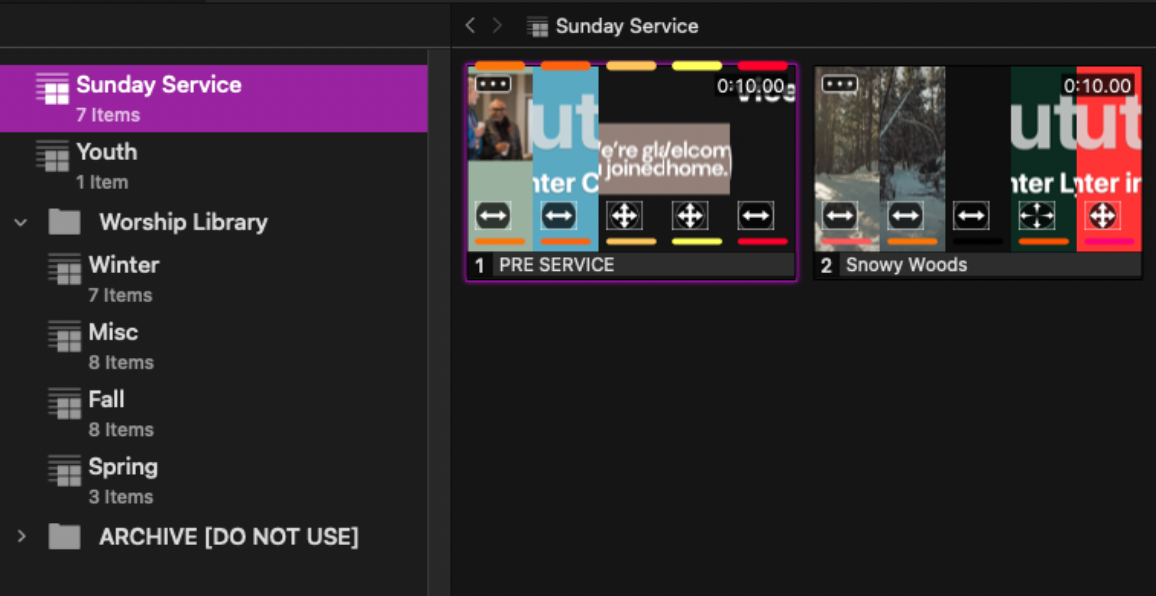
Cues are arranged into playlists, currently we have the Sunday Service playlist selected. There are some other playlists present, such as Youth and Worship Library (technically a group of playlists). Youth is, well, what it says on the tin. We're going to be focusing on Sunday Service and the Worship Library for this tutorial though.
Sunday service contains the only cues that will be used during the course of the service, and we'll go through these items one by one.
1. Pre Service
The Pre Service look contains the videos and overlays that are displayed before the service starts (surprise!). This typically includes some welcome messages on the two side screens, along with announcements on the centre screen. It also includes an overlay on the far left corner to point towards the prayer room. We'll get into how that's possible a bit later.
2. Snowy Mountains 3
The name of this cue is irrelevant, but this cue comes from the Worship Library. It contains backgrounds (in this case, snowy mountains as the name suggests), and puts ProPresenter outputs onto the correct screens.
3. Input 1 (aka Videos)
Input 1 is a pretty awful name (which has since been updated to Videos), but this is used for playing videos from ProPresenter.
4. Sermon
The Sermon look changes each week, but contains 3 main images each week: Left, Right, Middle. You'd be correct in guessing that these are for the left, right, and middle screens, respectively. Updating these images is slightly involved, and should be done for you by one of the staff.
The source files for these are located in Finder > Favourites > 02 Weekly Graphics > 2026 Graphics > MONTH > DATE > (Right.png, Left.png, Middle@1.5.png). *Year subject to change without warning.
5. Snowy Mountain
Same as #2, this comes from the Worship Library.
6. Night
Also from the Worship Library.
7. Post Service
Similar to the Pre Service cue, this contains video loops for the screens, however it does not advertise pre-service prayer (since its, y'know, not pre-service anymore).
Fetching from the Worship Library
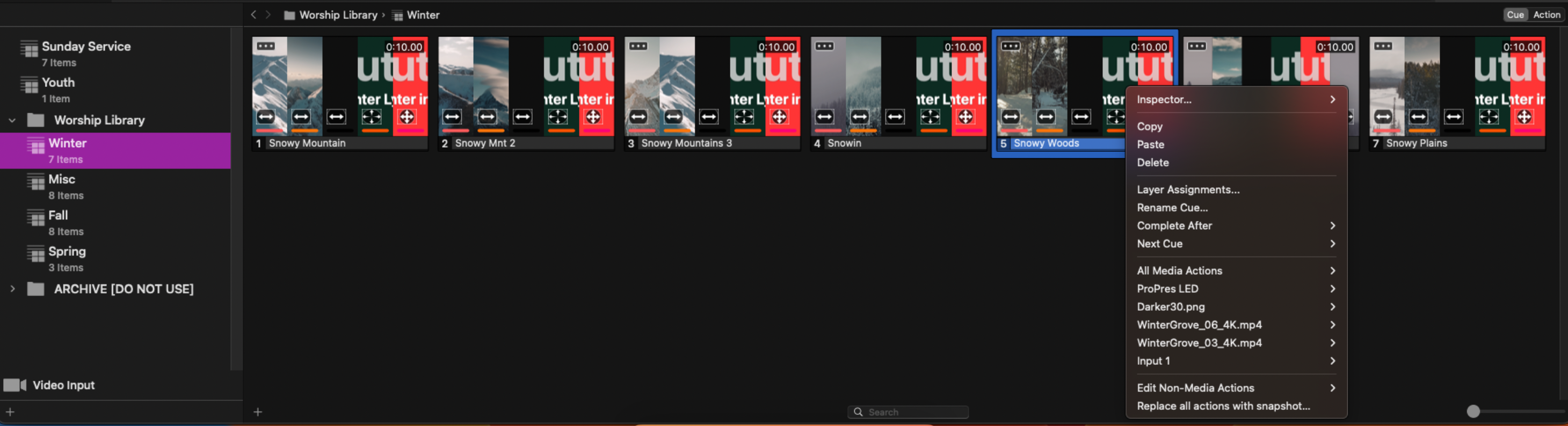
Each week, we try to vary the backgrounds we use. Our worship library has a seasonal selection of high effort footage obtained by travelling around the world backgrounds we paid for online. We can bring these cues into our main Sunday Service playlist by navigating to a season in the Worship Library, right clicking on a cue, and pressing Copy. Next we go back to Sunday Service, right click the cue to the left of where we want our Worship Library cue to appear, and press Paste.
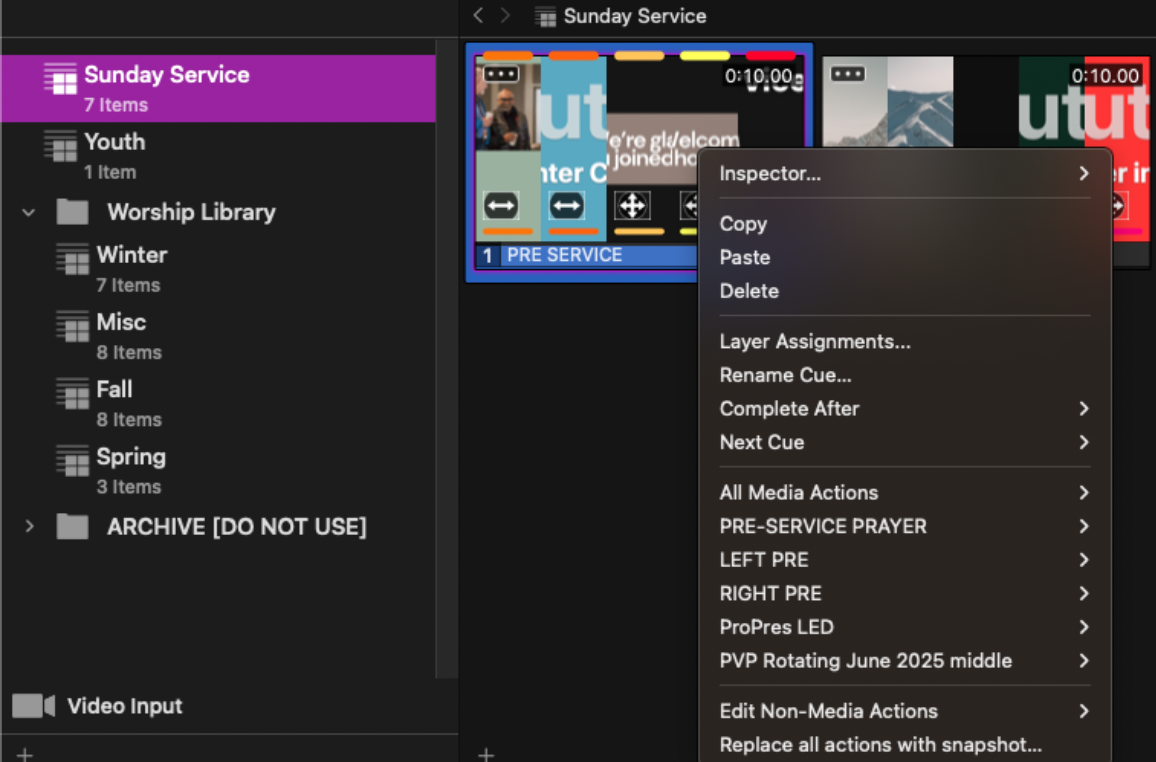
To remove old worship cues, simply right click and press Delete.