
PVP: Cues & Playlists
The PVP interface can look a bit daunting at first. If you've not seen it before, or this is your first time, here it is:
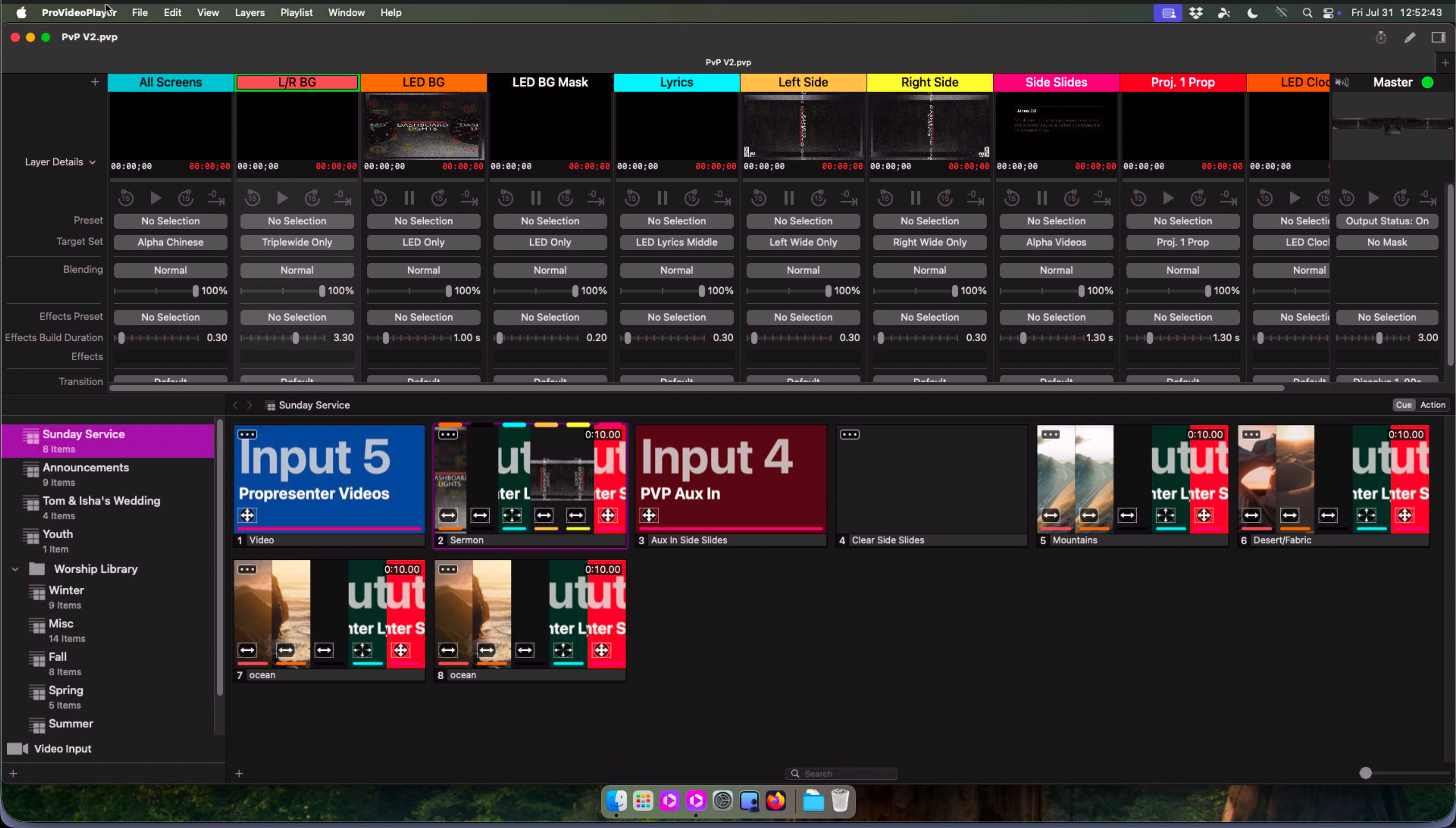
It looks like there's a lot going on, right? But as we break it down into smaller pieces, it becomes much less overwhelming. Let's start with cues and playlists.
Cues & Playlists
Cues are listed on the bottom half of the screen. They allow us to pre-program events that will affect every screen at the same time, instead of manually changing each screen one by one. We won't go over building cues here (that's part of the PVP deep dive).
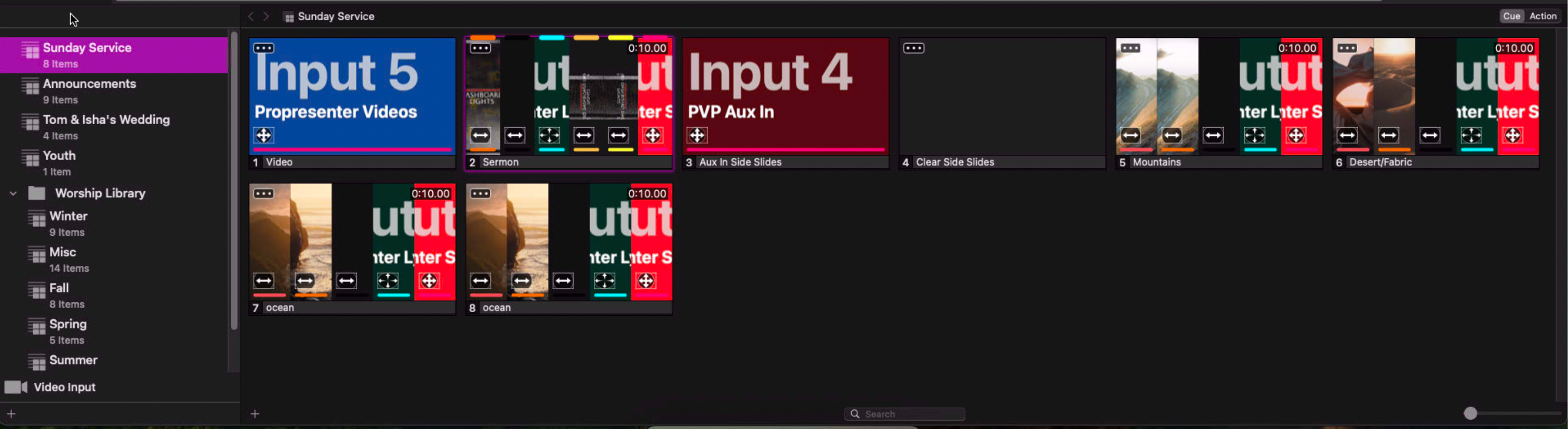
Cues are arranged into playlists, currently we have the Sunday Service playlist selected. There are some other playlists present, and some come and go (ie Tom & Isha's Wedding is a rental happening around the time of me updating this page). There are 2 main playlists we need to focus on here; Sunday Service and Announcements.
The ordering of the cues is very important, as changing the order will change the functions of the buttons on the stream deck. Let's take a look at these cues in order.
1. Videos
This blacks out all the screens and displays the video output from ProPresenter.
2. Sermon
The Sermon look changes each week, but contains 3 main images each week: Left, Right, Middle. You'd be correct in guessing that these are for the left, right, and middle screens, respectively. These images should automatically update each week, but if they aren't updated you'll need to go search dropbox to see what's changed.
The source files for these are located in Finder > Favourites > 02 Weekly Graphics > 2026 Graphics > 001 Current PVP Graphics > (left.png, right.png, middle.png).
*Year subject to change without warning.
3. Aux In Side Slides
This one is a bit of a tricky one to explain. PVP has an input that is designated as an AUX input, sort of like the aux on your car stereo. The aux input can be passed around to whoever is "playing music", or in our case whatever video we need to input. This is most commonly used for baptisms, where we show a camera on screen.
Do note that this button does NOT have a Clear action on it, which means that it simply changes the one layer (side slides) and leaves the rest of the layers alone. In layman's terms, it just slaps the aux input over top of whatever else we have going on. Hence the next slide.
4. Clear Side Slides
This is just a clear action to remove the contents of the side slides layer. Typically used to clear the aux input.
5. Mountains
The name of this cue is irrelevant, but this cue comes from the Worship Library. It contains backgrounds (in this case, snowy mountains as the name suggests), and puts ProPresenter outputs onto the correct screens.
6. Desert/Fabric
Same as #5, this comes from the Worship Library.
7. Ocean
Also from the Worship Library.
8. Ocean
I think you get the idea.
If you're a longtime PVP operator, you'll probably have noticed that the Pre and Post service buttons are no longer on this page. They've moved to the second playlist, Announcements.
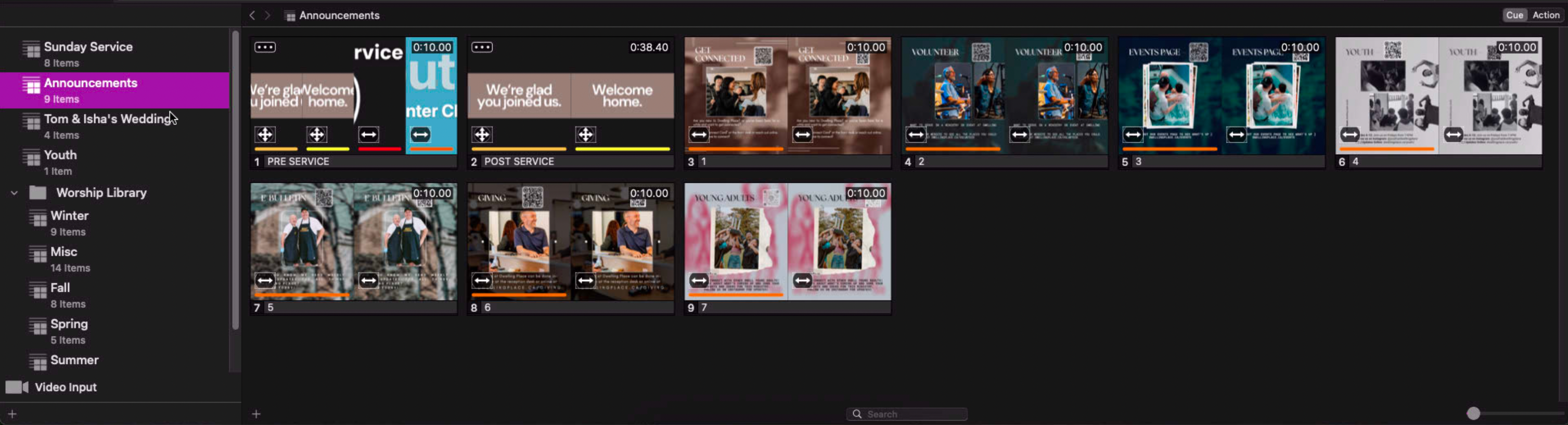
2.1. Pre Service
The Pre Service look contains the videos and overlays that are displayed before the service starts (surprise!). This typically includes some welcome messages on the two side screens, along with announcements on the centre screen (a rotation of the rest of the slides in this playlist). It also includes an overlay on the far left corner to point towards the prayer room. We'll get into how that's possible a bit later.
2.2. Post Service
Similar to the Pre Service cue, this contains video loops for the screens, however it does not advertise pre-service prayer (since its, y'know, not pre-service anymore).
Fetching from the Worship Library
Each week, we try to vary the backgrounds we use. Our worship library has a seasonal selection of high effort footage obtained by travelling around the world backgrounds we paid for online. We can bring these cues into our main Sunday Service playlist by navigating to a season in the Worship Library, right clicking on a cue, and pressing Copy. Next we go back to Sunday Service, right click the cue to the left of where we want our Worship Library cue to appear, and press Paste.
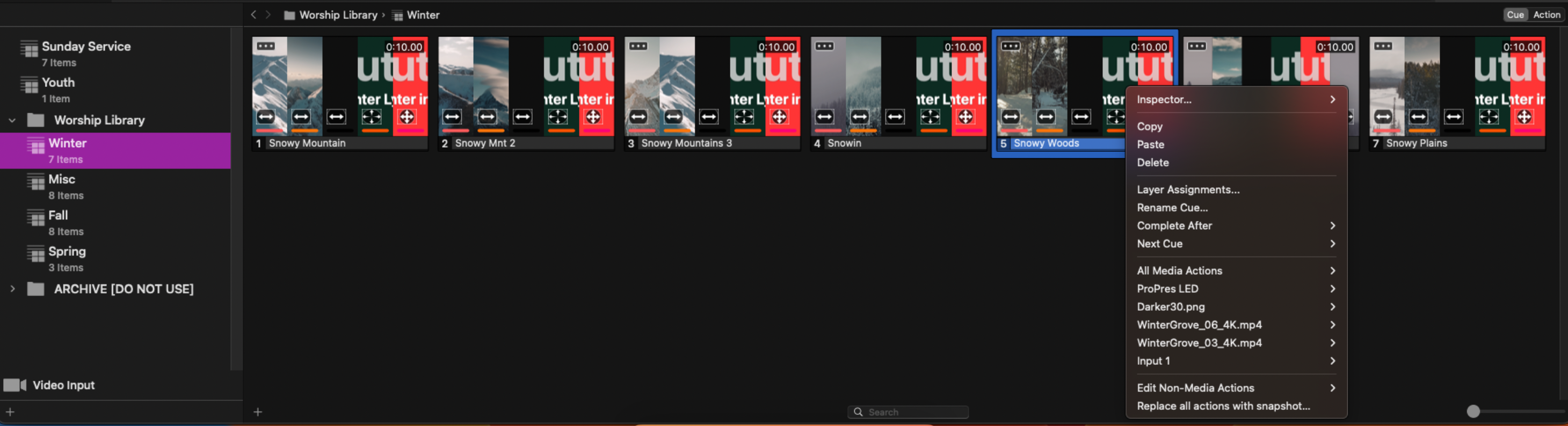
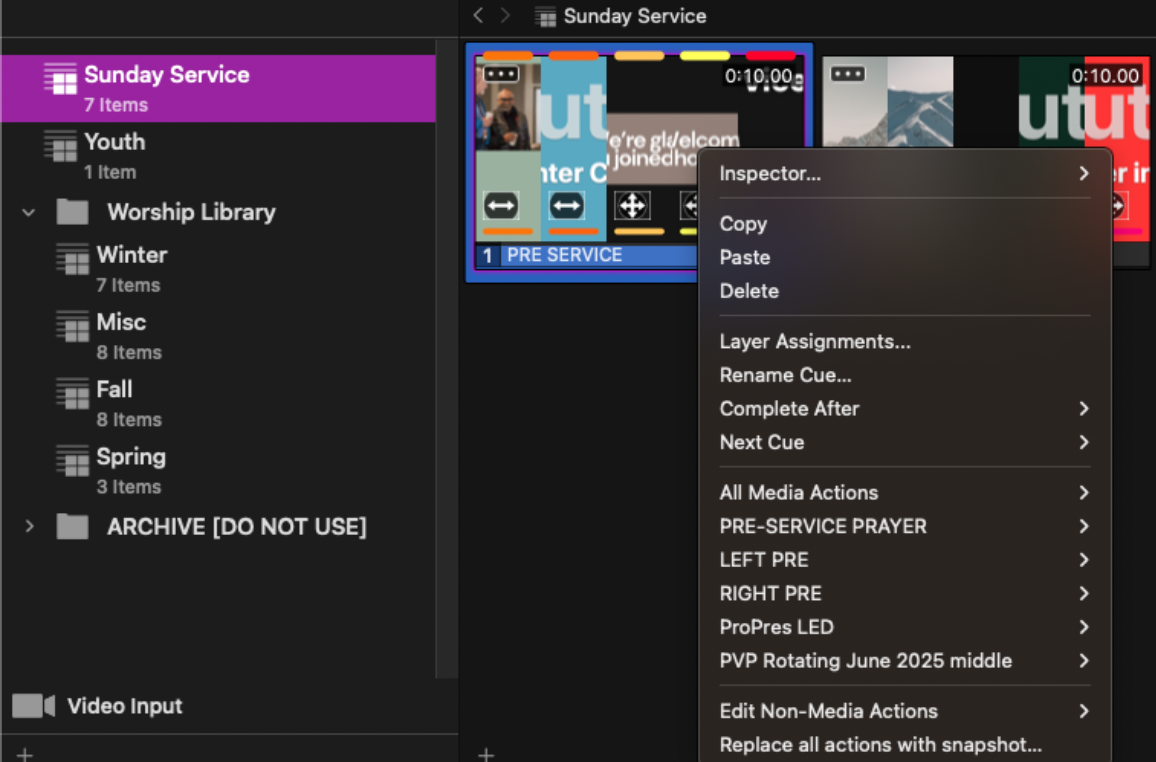
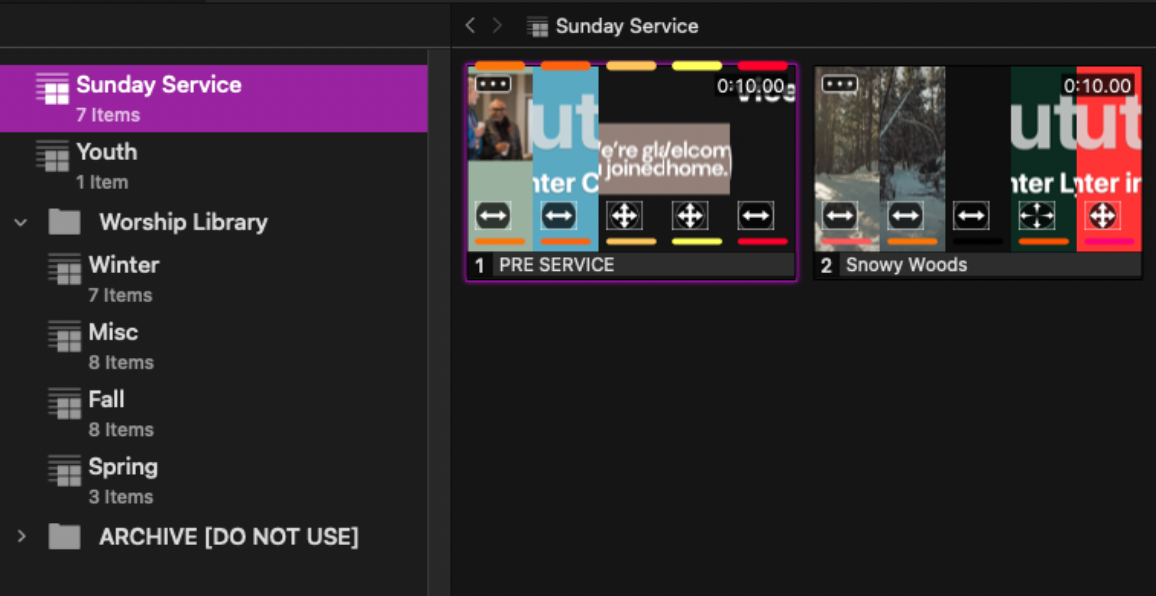
To remove old worship cues, simply right click and press Delete. Remember that preserving the order of the slides is important, so once you've made any changes to these playlists, you must TEST TEST TEST them using the streamdeck.
No comments to display
No comments to display