
PVP: Layers
The Layers view of PVP shows us what's happening on each layer.
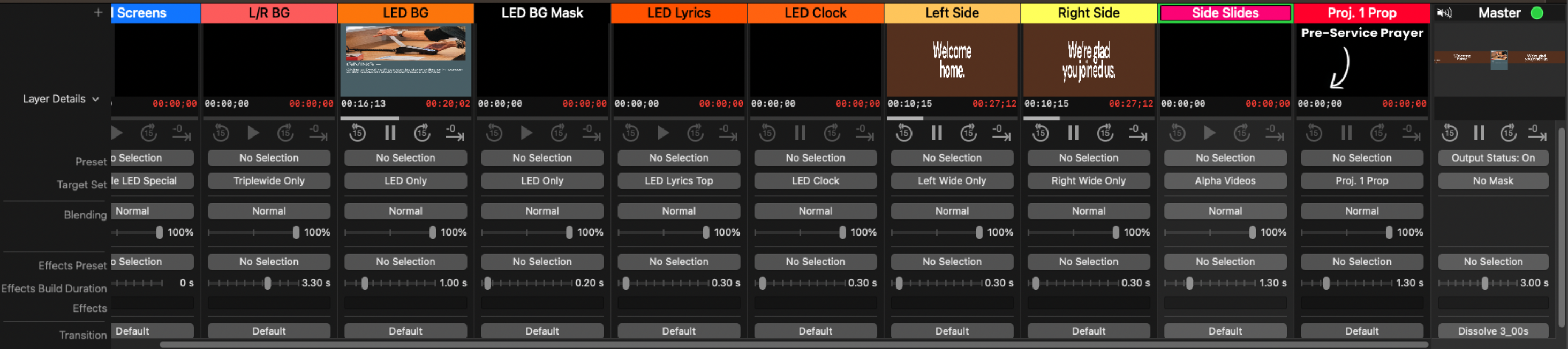
It looks like a lot is happening here, however it's actually quite simple. Each column represents one layer, and these layers are stacked from the leftmost layer to the rightmost. There's a screen which shows the content on each layer, along with media controls for layers which are playing a video. All the buttons and sliders below the media controls are irrelevant.
What is a layer? Why are they stacked? What's happening??
I suppose a bit of explanation is in order. A "layer" in PVP does not represent a screen. Instead, think of it like this:
- We have a big canvas.
- we can cover that canvas in oddly sized sticky notes.
- The sticky notes are applied from left to right of the Layers view, meaning that something on left side of the layers view will be buried underneath another item which is on the right side of the layers view.
- We tell PVP where on the canvas each physical screen belongs. It will then display the sticky notes that are within the box that represents the physical screen.
Our canvas to apply sticky notes to, along with the mapping of physical screens (ignore all the technical text).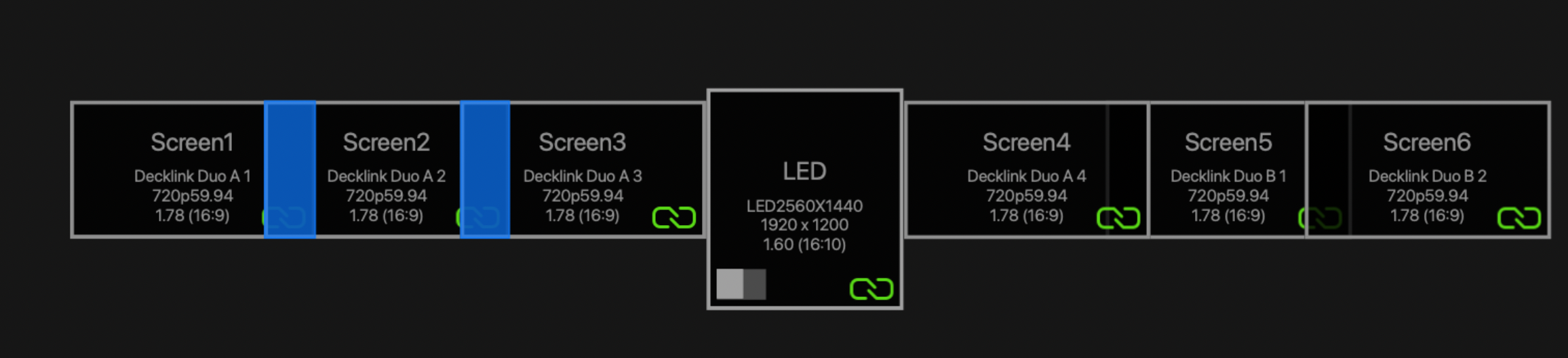
A sticky note for the centre screen
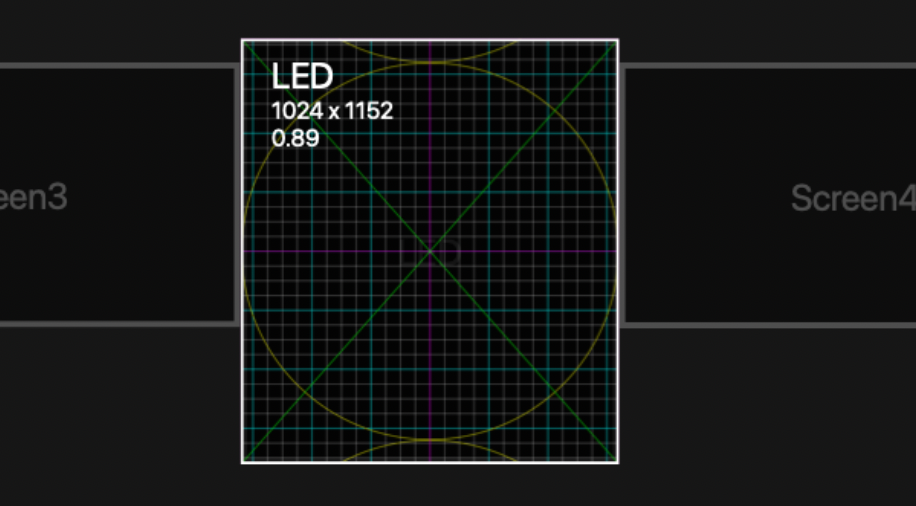
A sticky note for both side screens
Let's take an example using our centre screen. In the following image, both of these layers target the same "sticky note", the centre screen.
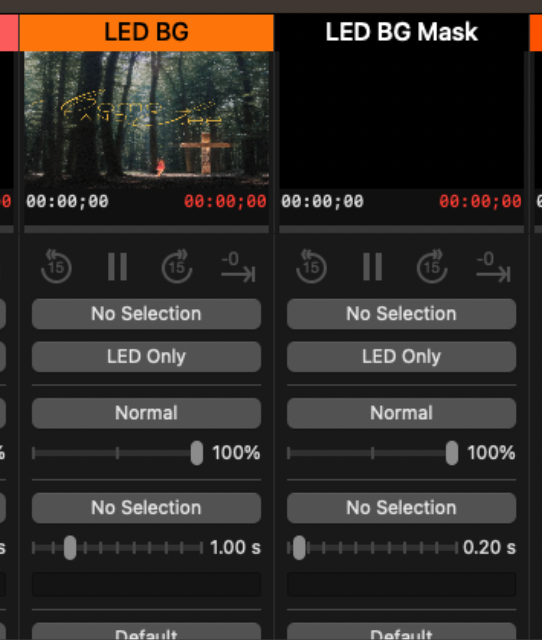
The "LED BG" layer provides the background image for our sermon. But our centre screen happens to be an LED wall, and is incredibly bright. To combat this, we apply a mask image, which simply makes the background image darker. Since the mask layer is positioned on the right side (in this case, directly to the right, however it can be anywhere as long as it's on the right side of the background layer), it is applied after the background, meaning the background becomes darker.
As another example, we can use the Pre Service Prayer overlay from the Pre Service slides.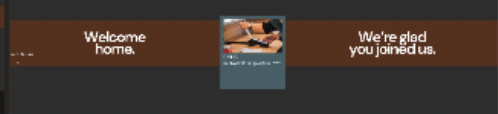
You can faintly see the Pre-Service Prayer arrow in the bottom left of the above image. It's not part of the video being played, which is coming from the Left Side layer. Instead, it is coming from the Proj. 1 Prop layer, which going back to our sticky note analogy, is a sticky note placed in the bottom left of our big canvas.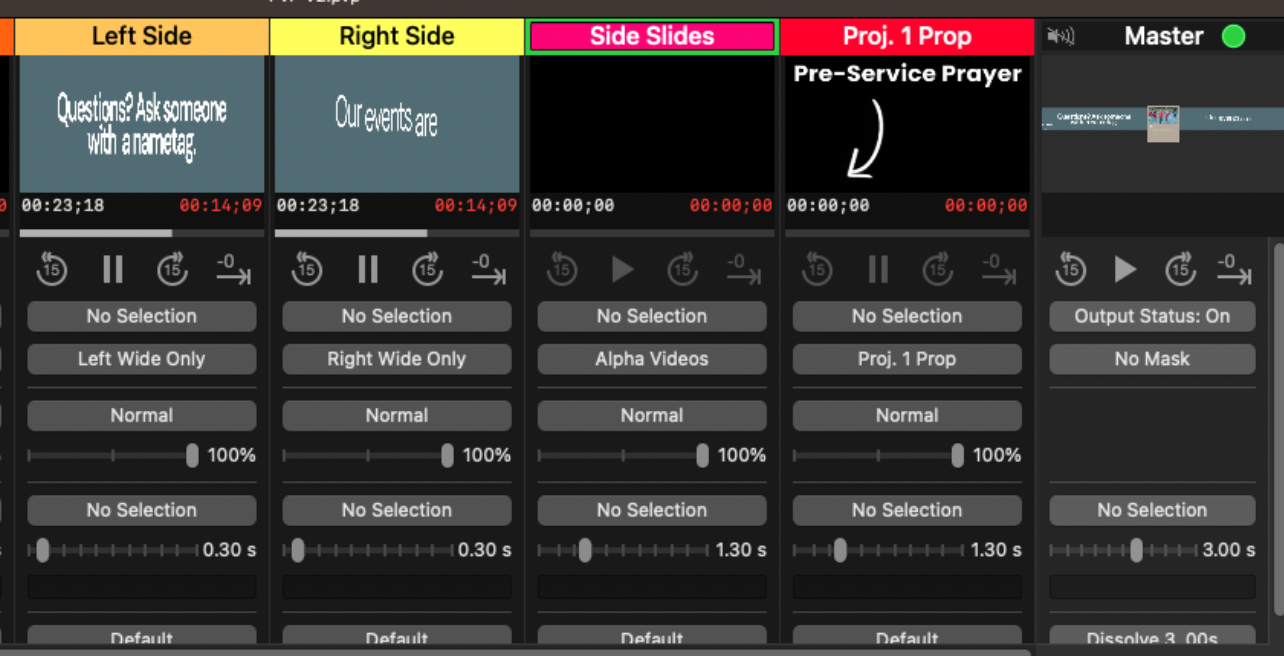
No comments to display
No comments to display