
Macro Configuration
Taking a slight detour from talking about outputs, let's focus on control for a moment. By now you've got a bunch of Looks that do a bunch of different things, and you've probably also got some different things you want to happen when you click a slide (eg. changing the stage display layout). We could use slide actions, but what if we want to apply the same set of actions to a second slide? or a third slide? We'd have to manually set up every action on each slide. Fortunately, there's a better way to do this: Macros.
Macros are simply a set of slide actions. You can add all the slide actions you want to a specific macro, and then assign that macro to whatever slides you want. Adding it to a new slide is as simple as dragging the macro onto that slide, and updating the macro will update the actions across all of those slides.
You can find the macro tab in the bottom right, under the [M]: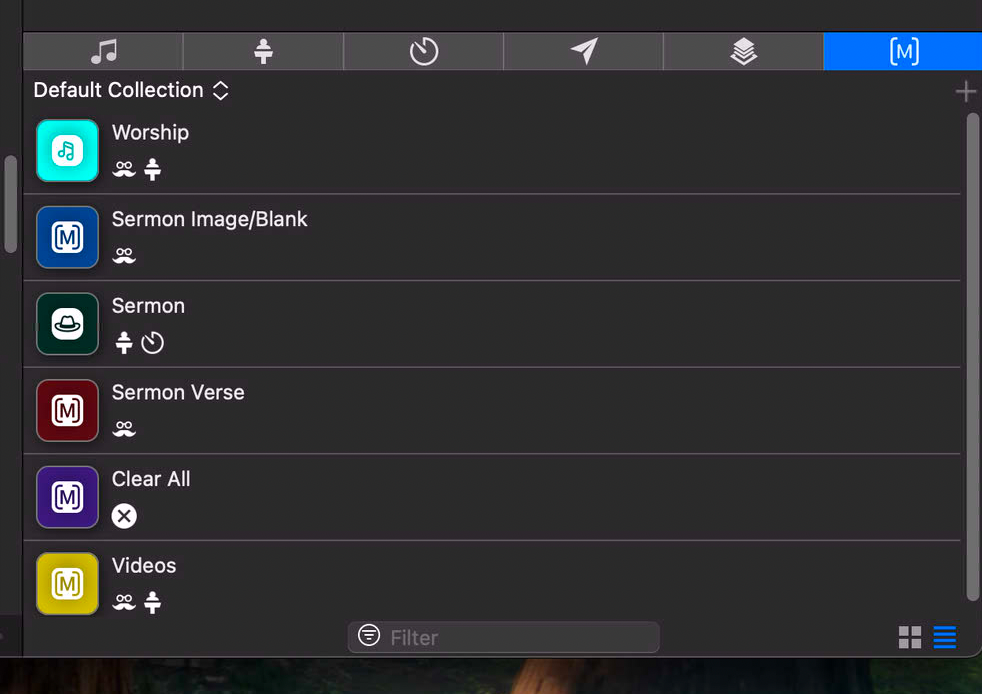
You can see the actions that will be triggered by each macro under the name, and can edit them as you would on a slide (with a right click).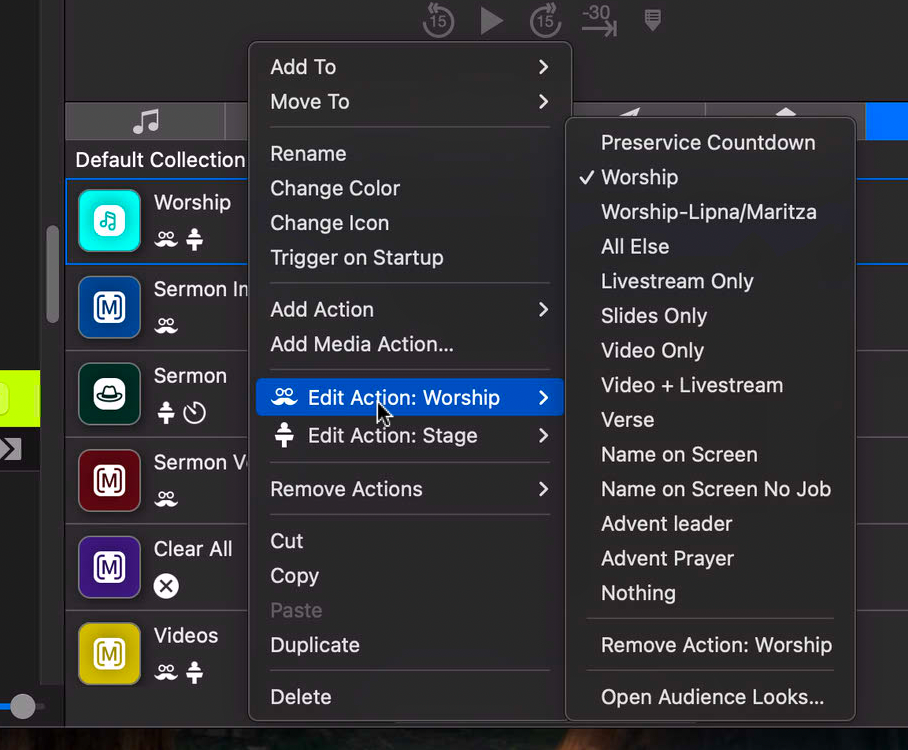
Once you've added/edited the actions you want, simply drag the macro onto a slide. You'll see its icon show up on the slide: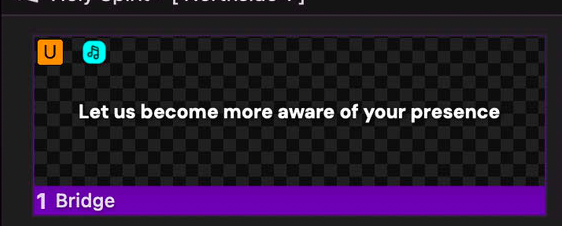
And now it will trigger every time the slide is pressed. You can have multiple macros on a slide, along with other slide actions.
No comments to display
No comments to display